In the past LibSTEMM (formerly ALDES – Association of Liberal Democrat Engineers and Scientists) has received membership subscription payments through PayPal. This is changing and LibSTEMM will soon not be able to receive PayPal payments. In advance of this we are asking LibSTEMM members to cancel their subscription via PayPal and to set-up membership subscription payments either via a Standing Order or via a Debit/Credit card using Stripe/Link. Guidance on how to set-up the Standing Order or Stripe/Link payment can be found on this page: https://libstemm.uk/stripe-signup/.
We have created the guide below to help members to cancel their subscription payment via PayPal and, if they want to, to cancel their PayPal account. Please note, we are not the PayPal support desk, the information below is to the best of our understanding, and things could look different depending on your web browser etc. There are 3 basic steps:
- Logging into your PayPal account.
- Finding and cancelling your subscription and/or payment card details.
- Closing your PayPal account if you so wish.
1. Logging into your PayPal Account
The web address for your PayPal Account is (for UK accounts) https://www.paypal.com/uk/signin and you should see a page that looks like the following.
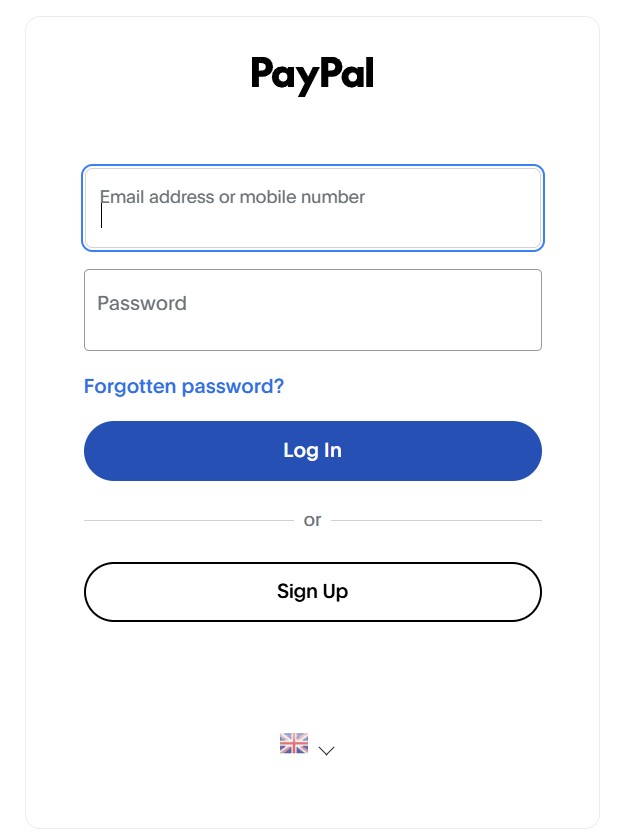
The email address you enter is the one you used when signing up to your ALDES/LibSTEMM membership (most probably the email where you receive communications from LibSTEMM). If you can remember your Password then enter it, if not then click on the Forgotten password link and reset your password.
2. Finding and cancelling your ALDES/LibSTEMM membership subscription:
Once you have logged into your PayPal account you should see something like the banner below at the top of the webpage.
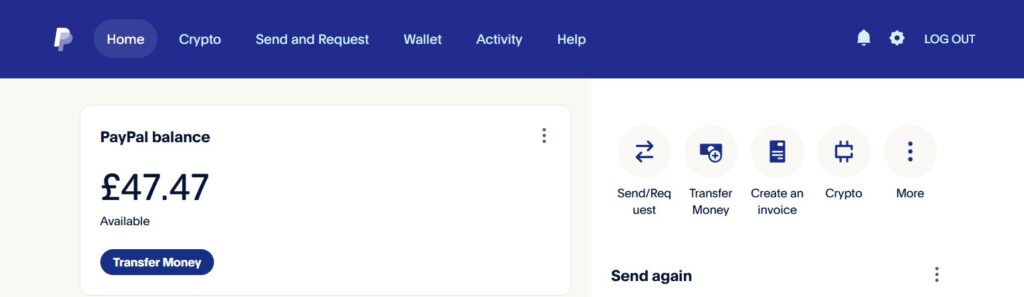
At the top right there is a spoked wheel to the left of the LOG OUT. This is for your account settings, click on this and go to your account settings page, which should look similar to that below.

Click on the link for Payments. This should take you to your “Payments page” where you will need to scroll down to find the section that says Automatic Payments, which should look like that below.
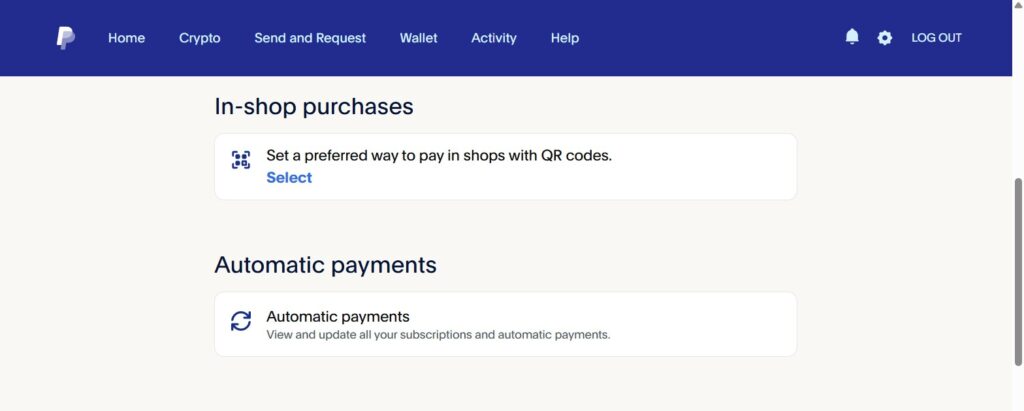
Click on the Automatic payments link (with the circular double arrows). This should take you to a webpage that displays your payments, including your ALDES (Association of Liberal Democrat Engineers and Scientists) recurring payment. Click on that payment and then click on the Cancel link to cancel the payment.
If you want to remove the payment card stored by PayPal
This supposes there are no other payments which you wish to continue using your PayPal account for – e.g. if ALDES/LibSTEMM was the only one.
In order to find your payment card click on the Wallet link in the banner. This should take you to a page that looks something like that below.
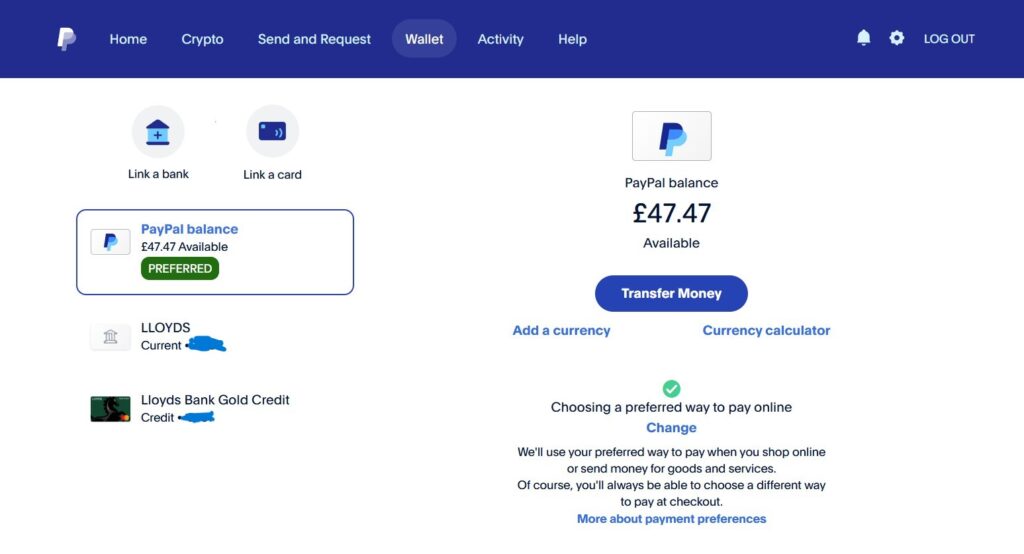
Your payment card should be displayed (in this example, it is the Lloyds Bank Gold Credit Card), click (or double click on the payment card. This should take you to a webpage that looks something like that below.
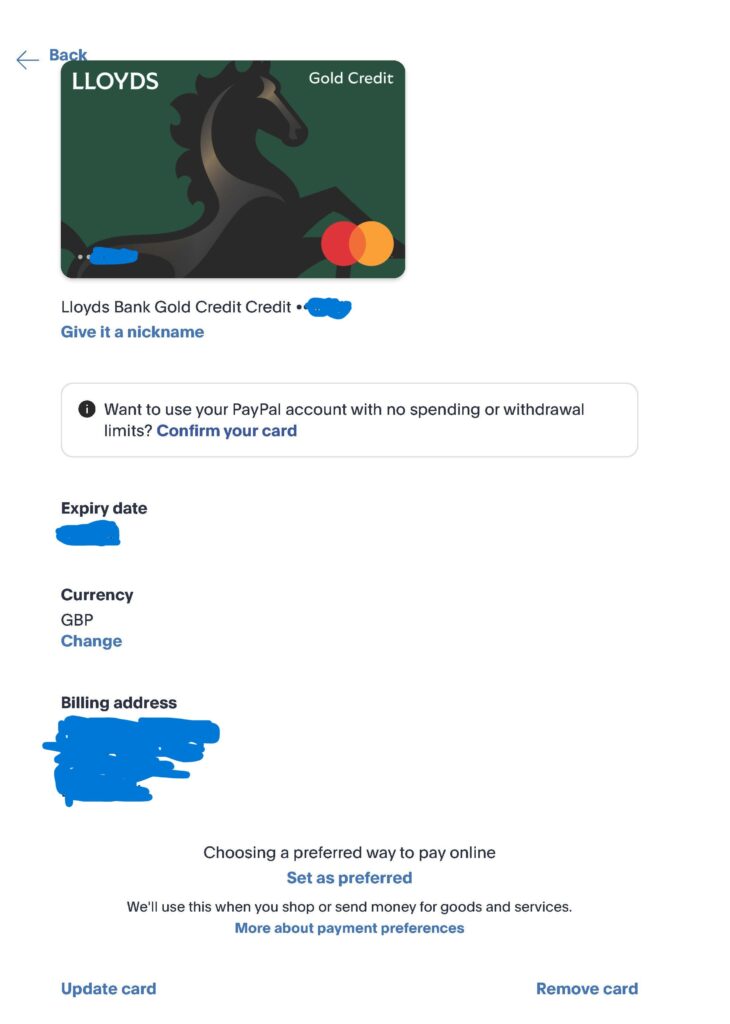
At the bottom right of the page is a link for Remove Card, click on that link and remove your payment card.
3. Closing/cancelling your PayPal account if you wish
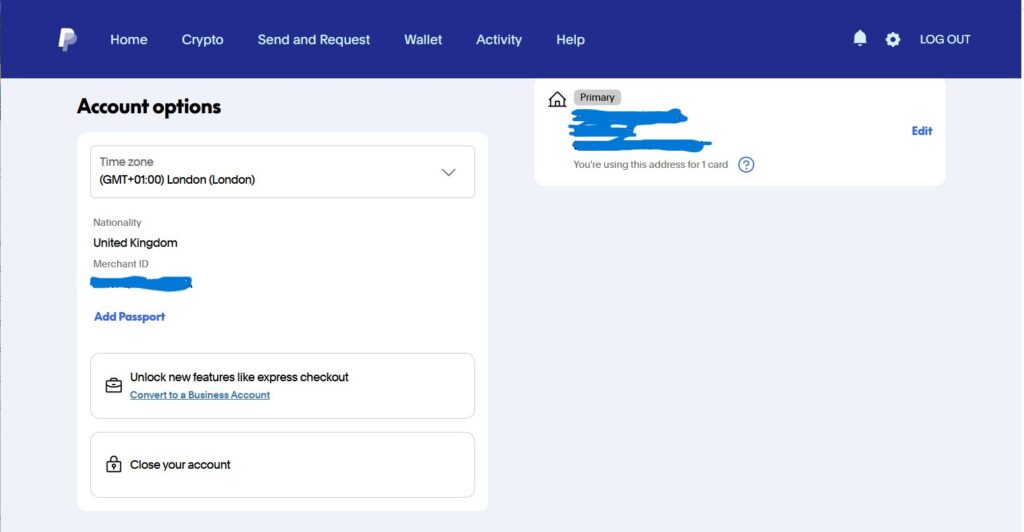
If you have cancelled your subscription and removed your payment card, and the PayPal account shows a balance of £0.00, and you have no other subscriptions or need for the account beyond ALDES/LibSTEMM, then you can, if you so want, close your PayPal account. Again, go back to the Home page and click on the spoked wheel to the left of the LOG OUT to take you to your settings page. If you scroll down on this page, you will find an Account options box as shown below. At the bottom of that box is a Close your account link, click on that link and follow the instructions to close your PayPal account.